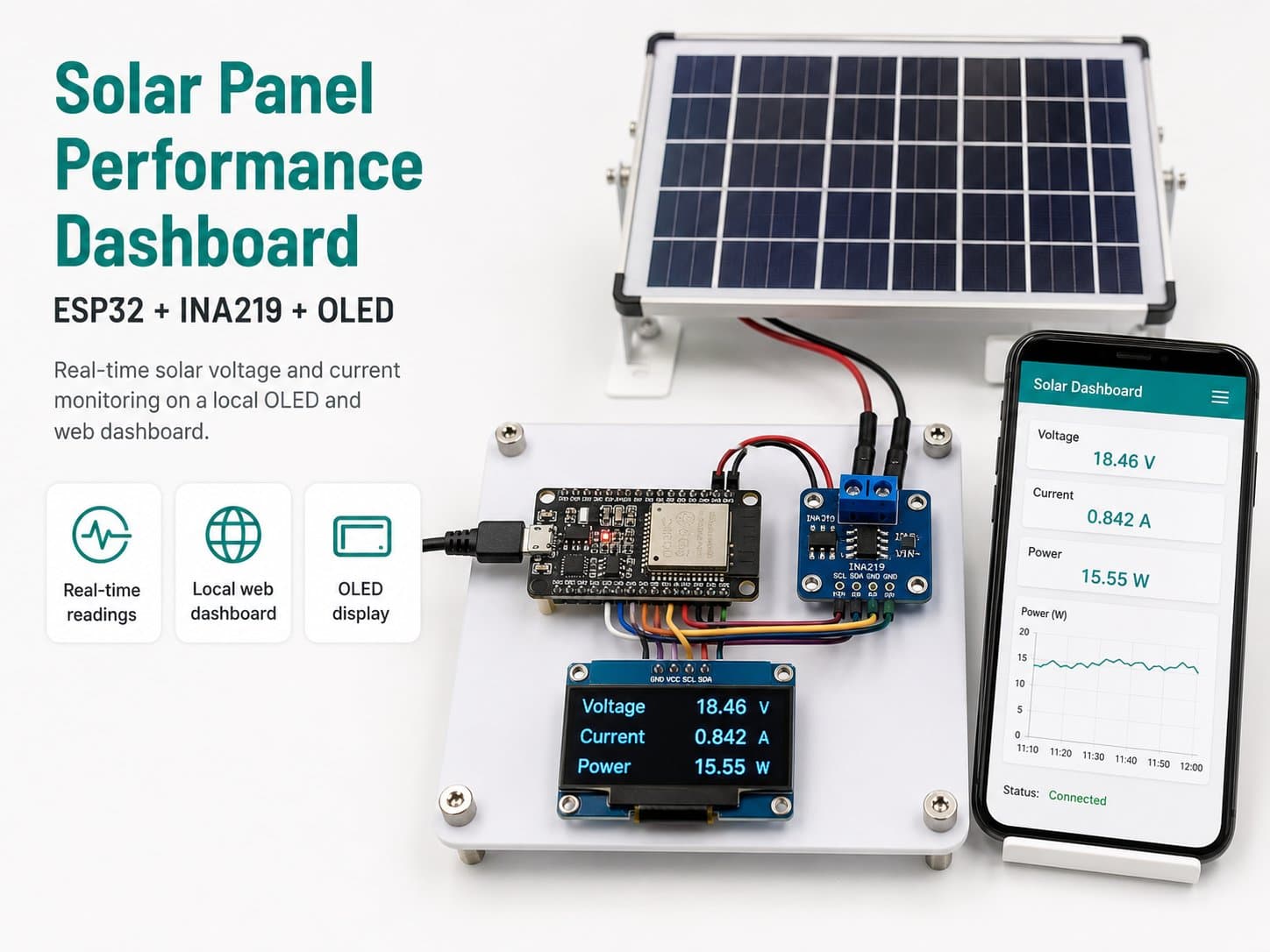
Solar Panel Performance Dashboard
An ESP32 measures a solar panel's output voltage and current with an INA219 sensor, displaying the readings in real time on a local OLED screen and a simple web dashboard hosted right on the ESP32.
This project builds a solar panel performance dashboard using an ESP32. An INA219 sensor, wired in series on the panel's (or charge controller's) output, measures bus voltage and current through its built-in shunt resistor, letting the ESP32 compute instantaneous power.
The data is shown locally on an OLED screen and simultaneously published through a small web server hosted right on the ESP32 (WiFi station mode, automatically falling back to a local SoftAP if it can't join the home network), so you can view it in real time from a browser on the same LAN — no external cloud service required.
Detailed guide
Build a fully on-device solar panel performance dashboard on an ESP32, using an INA219 sensor and a local web server for real-time monitoring over LAN — no cloud service required.
1. Introduction
This project builds a solar panel performance dashboard using an ESP32. An INA219 sensor is wired in series on the panel's output (or the charge controller's output) to measure bus voltage and current through its integrated shunt resistor, letting the ESP32 compute instantaneous power.
The data is shown locally on an OLED screen and simultaneously published via a small web server running directly on the ESP32 (WiFi STA, automatically falling back to local SoftAP mode if it can't connect to a home network), so it can be viewed in real time from a browser on the same LAN — no external cloud service required.
Spec note: the INA219 measures ±3.2A current and 0–26V bus voltage per the TI datasheet, which suits small/medium solar panels used for education and testing (under 3A). For higher-power panels, switch to the INA226 (a wider range) or add an external shunt resistor sized for the actual load current.
2. Components Needed
| Component | Qty | Note |
|---|---|---|
| ESP32 DevKit V4 | 1 | Main board, runs the local WebServer |
| INA219 — Current & Power Sensor (I2C) | 1 | Measures the solar panel's output V/I |
| 0.96" 128×64 I2C OLED (SSD1306) | 1 | Local display |
| 5mm Green LED | 1 | Indicates WiFi/dashboard-ready status |
| 220Ω Resistor | 1 | LED current limiting |
3. Wiring Diagram
| INA219 / OLED (shared I2C bus) | ESP32 |
|---|---|
| VCC (both modules) | 3V3 |
| GND (both modules) | GND |
| SDA (both modules) | GPIO21 |
| SCL (both modules) | GPIO22 |
| Green LED | ESP32 |
|---|---|
| Through a 220Ω resistor | GPIO26 |
The INA219's VIN+/VIN- terminals are wired in series on the solar panel's actual output line (not connected to the ESP32) — its default I2C address 0x40 doesn't clash with the OLED (0x3C), so sharing the bus is safe.
4. Example #1 — Basic INA219 Reading over Serial
// Vi du 1: Doc INA219 co ban qua Serial (chua co OLED/Web dashboard)
#include <Wire.h>
#include <Adafruit_INA219.h>

Adafruit_INA219 ina219;
bool ina219Available = false;

void setup() {
  Serial.begin(115200);
  delay(300);
  Serial.println("=== INA219 basic reader - Boot OK ===");
  ina219Available = ina219.begin();
  if (!ina219Available) {
    Serial.println("[INA219] Khong tim thay cam bien.");
  }
}

void loop() {
  if (ina219Available) {
    float v = ina219.getBusVoltage_V();
    float mA = ina219.getCurrent_mA();
    Serial.print("Panel: ");
    Serial.print(v, 2);
    Serial.print(" V, ");
    Serial.print(mA, 1);
    Serial.println(" mA");
  } else {
    Serial.println("Cam bien loi - du lieu null");
  }
  delay(1500);
}
5. Example #2 — Displaying Locally on the OLED
// Vi du 2: Hien thi INA219 len OLED cuc bo (chua co Web dashboard)
#include <Wire.h>
#include <Adafruit_GFX.h>
#include <Adafruit_SSD1306.h>
#include <Adafruit_INA219.h>

Adafruit_SSD1306 display(128, 64, &Wire, -1);
Adafruit_INA219 ina219;
bool oledAvailable = false;
bool ina219Available = false;

void setup() {
  Serial.begin(115200);
  delay(300);
  Serial.println("=== INA219 + OLED local - Boot OK ===");
  Wire.begin(21, 22);
  oledAvailable = display.begin(SSD1306_SWITCHCAPVCC, 0x3C);
  ina219Available = ina219.begin();
  if (oledAvailable) {
    display.clearDisplay();
    display.setTextColor(SSD1306_WHITE);
    display.setCursor(0, 0);
    display.println("Solar Panel");
    display.display();
  }
}

void loop() {
  if (ina219Available) {
    float v = ina219.getBusVoltage_V();
    float mA = ina219.getCurrent_mA();
    Serial.printf("%.2fV %.1fmA\n", v, mA);
    if (oledAvailable) {
      display.clearDisplay();
      display.setCursor(0, 0);
      display.setTextSize(2);
      display.printf("%.2fV\n", v);
      display.setTextSize(1);
      display.printf("%.0f mA\n", mA);
      display.display();
    }
  } else {
    Serial.println("Cam bien loi - du lieu null");
  }
  delay(1500);
}
6. Example #3 — The Real Application: OLED + Local Web Dashboard
/*
  Dashboard theo doi hieu suat tam pin mat troi (ESP32 + INA219 + OLED)
  Web server noi bo tren port 80, tu dong fallback SoftAP neu STA that bai.
*/
#include <Wire.h>
#include <Adafruit_GFX.h>
#include <Adafruit_SSD1306.h>
#include <Adafruit_INA219.h>
#include <WiFi.h>
#include <WebServer.h>

const char* WIFI_SSID = "YOUR_WIFI_SSID";
const char* WIFI_PASSWORD = "YOUR_WIFI_PASSWORD";
const unsigned long WIFI_CONNECT_TIMEOUT_MS = 15000;
const char* AP_SSID = "SolarDashboard-ESP32";
const char* AP_PASSWORD = "solar1234";

Adafruit_SSD1306 display(128, 64, &Wire, -1);
bool oledAvailable = false;
Adafruit_INA219 ina219;
bool ina219Available = false;
const int LED_STATUS_PIN = 26;
WebServer server(80);
bool apMode = false;

float lastVoltage = NAN, lastCurrentMA = NAN, lastPowerMW = NAN;

void handleRoot() {
  String html = "<!DOCTYPE html><html><head><meta charset='utf-8'>";
  html += "<meta http-equiv='refresh' content='3'><title>Solar Dashboard</title></head><body>";
  html += "<h2>Solar Panel Dashboard</h2>";
  if (!isnan(lastVoltage)) {
    html += "<p>Dien ap: " + String(lastVoltage, 2) + " V</p>";
    html += "<p>Dong dien: " + String(lastCurrentMA, 1) + " mA</p>";
    html += "<p>Cong suat: " + String(lastPowerMW, 1) + " mW</p>";
  } else {
    html += "<p>Cam bien INA219 khong san sang</p>";
  }
  html += "</body></html>";
  server.send(200, "text/html", html);
}

void handleJson() {
  String json = "{\"voltage_V\":";
  json += isnan(lastVoltage) ? "null" : String(lastVoltage, 3);
  json += ",\"current_mA\":";
  json += isnan(lastCurrentMA) ? "null" : String(lastCurrentMA, 2);
  json += ",\"mode\":\"" + String(apMode ? "ap" : "sta") + "\"}";
  server.send(200, "application/json", json);
}

bool connectWiFiOrFallbackToAP() {
  WiFi.mode(WIFI_STA);
  WiFi.begin(WIFI_SSID, WIFI_PASSWORD);
  unsigned long start = millis();
  while (WiFi.status() != WL_CONNECTED && millis() - start < WIFI_CONNECT_TIMEOUT_MS) delay(300);
  if (WiFi.status() == WL_CONNECTED) { apMode = false; return true; }
  WiFi.mode(WIFI_AP);
  WiFi.softAP(AP_SSID, AP_PASSWORD);
  apMode = true;
  return false;
}

void setup() {
  Serial.begin(115200);
  delay(300);
  Serial.println("=== Dashboard hieu suat tam pin mat troi - Boot OK ===");
  pinMode(LED_STATUS_PIN, OUTPUT);
  Wire.begin(21, 22);
  oledAvailable = display.begin(SSD1306_SWITCHCAPVCC, 0x3C);
  ina219Available = ina219.begin();
  connectWiFiOrFallbackToAP();
  digitalWrite(LED_STATUS_PIN, HIGH);
  server.on("/", handleRoot);
  server.on("/data.json", handleJson);
  server.begin();
}

void loop() {
  server.handleClient();
  static unsigned long lastTelemetryMs = 0;
  if (millis() - lastTelemetryMs >= 2000) {
    lastTelemetryMs = millis();
    if (ina219Available) {
      lastVoltage = ina219.getBusVoltage_V();
      lastCurrentMA = ina219.getCurrent_mA();
      lastPowerMW = ina219.getPower_mW();
    }
    Serial.print("{\"voltage_V\":");
    Serial.print(ina219Available ? String(lastVoltage, 3) : "null");
    Serial.println("}");
    if (oledAvailable) {
      display.clearDisplay();
      display.setCursor(0, 0);
      display.setTextSize(2);
      if (ina219Available) display.printf("%.2fV\n", lastVoltage); else display.println("--.--V");
      display.display();
    }
  }
}
7. Common Issues
| Issue | Cause | Fix |
|---|---|---|
ina219.begin() returns false | Wrong I2C address or a loose SDA/SCL wire | Check the wiring, scan the I2C address (default 0x40) |
| Can't reach the dashboard from a browser | The ESP32 fell back to SoftAP but the computer is still on the old WiFi network | Connect your computer/phone to the SolarDashboard-ESP32 SSID, then browse to 192.168.4.1 |
| The dashboard page loads but the values are null | The INA219 sensor lost its I2C connection mid-run | Recheck the wiring/solder joints, check the Serial log to confirm the sensor's status |
| The OLED and the web dashboard show slightly different values | Normal, due to their different update cycles (the OLED follows TELEMETRY_INTERVAL_MS, the browser follows its 3s refresh) | Not a bug — you can sync the cycles if higher precision is needed |
8. Summary
This article shows how to build a fully on-device solar panel performance dashboard on an ESP32, with no dependency on a cloud service, using an INA219 to measure V/I and a small web server for real-time viewing from any device on the LAN (or via SoftAP when there's no home WiFi).
This on-device dashboard architecture suits educational projects and quick experimentation before scaling up to a full cloud IoT platform.