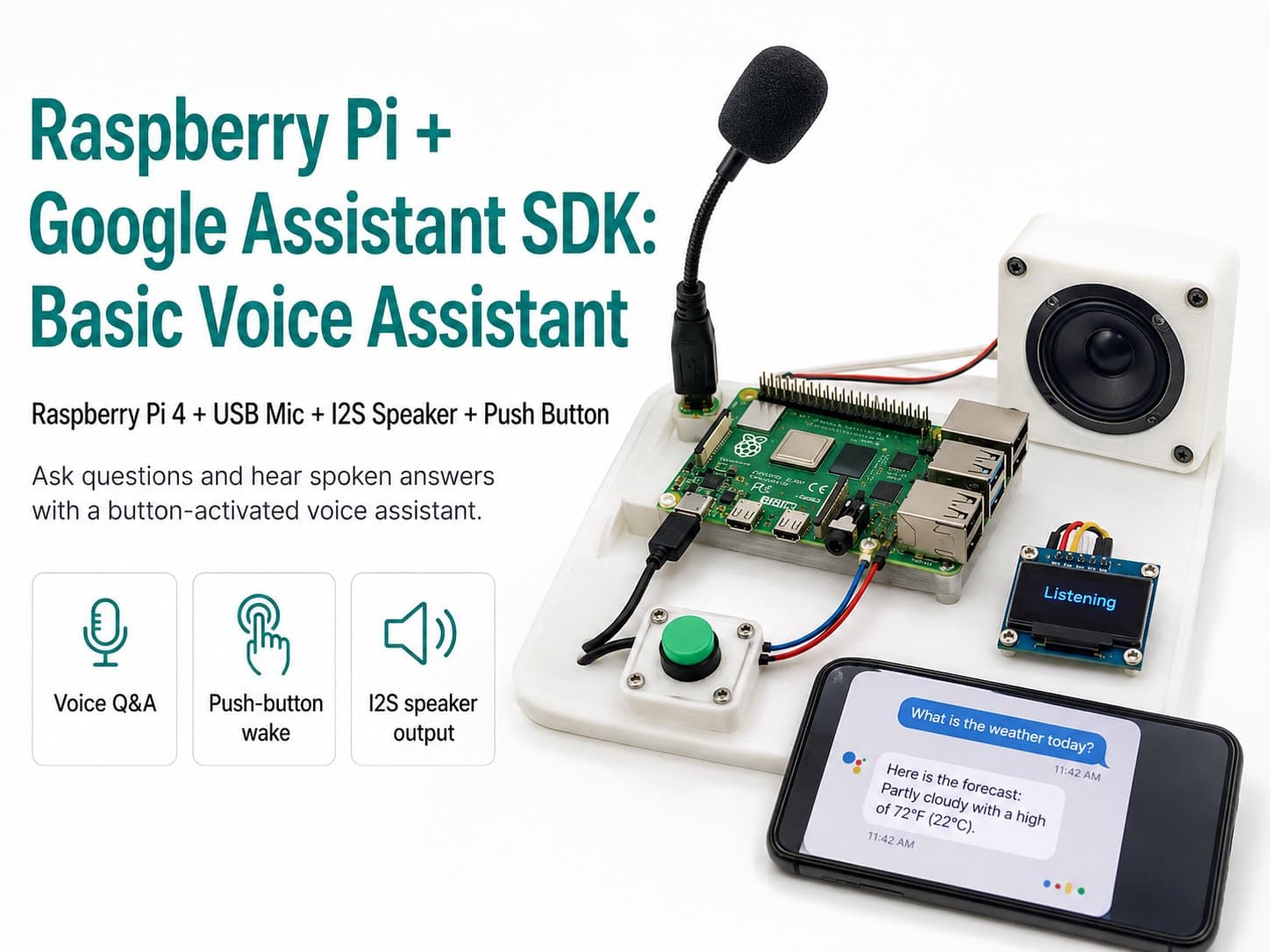
Raspberry Pi + Google Assistant SDK: Basic Voice Assistant
Build a basic voice assistant on a Raspberry Pi 4 with the Google Assistant SDK (gRPC), asking and answering questions via a mic and I2S speaker, activated by a push button.
This project shows how to build a basic voice assistant on a Raspberry Pi 4 using the Google Assistant Library / SDK (over gRPC): press a button to start a question, Google Assistant processes it in the cloud, and replies with speech through an I2S speaker.
Unlike the other offline lessons in this series (Whisper, Porcupine, on-device TTS), this project demonstrates integrating a full-featured commercial voice-assistant service (general knowledge, weather, calendar, reminders...) — the trade-off being that it needs an Internet connection and a Google Cloud account.
This lesson is a good way to directly compare the trade-offs between a self-built solution (offline, private, limited features) and a commercial one (online, feature-rich, dependent on a third-party service) when designing a real IoT product.
Detailed guide
Build a basic voice assistant on a Raspberry Pi 4 with the Google Assistant SDK, asking and answering questions via a mic and I2S speaker, activated by a push button.
1. Introduction
This project shows how to build a basic voice assistant on a Raspberry Pi 4 using the Google Assistant Library / SDK (over gRPC): press a button to start a question, Google Assistant processes it in the cloud, and replies with speech through an I2S speaker.
Unlike the other offline lessons in this series (Whisper, Porcupine, on-device TTS), this project demonstrates integrating a full-featured commercial voice-assistant service (general knowledge, weather, calendar, reminders...) — the trade-off being that it needs an Internet connection and a Google Cloud account.
This lesson is a good way to directly compare the trade-offs between a self-built solution (offline, private, limited features) and a commercial one (online, feature-rich, dependent on a third-party service) when designing a real IoT product.
2. Components Needed
| Component | Qty | Reference Price |
|---|---|---|
| Raspberry Pi 4 Model B (4GB or more) | 1 | ~1,800,000₫ |
| INMP441 I2S MEMS Mic | 1 | ~90,000₫ |
| I2S Speaker (MAX98357A + 3W speaker)* | 1 | ~120,000₫ |
| Push Button (push-to-talk) | 1 | ~2,000₫ |
| 32GB Class 10 MicroSD | 1 | ~120,000₫ |
| 5V/3A USB-C Power Supply | 1 | ~80,000₫ |
Component substitution note: this reuses the same custom "MAX98357A I2S Mono Amplifier + 3W Speaker" module used in the Text-to-Speech lesson in this series, since the hardware_catalog doesn't yet have a speaker/audio-DAC module.
Account requirement: you need a Google Cloud account (with the Google Assistant API enabled), and OAuth credentials set up via google-oauthlib-tool following Google's official guide, before the code in this lesson will run. There is no free shared demo account available.
3. Wiring Diagram
| INMP441 (I2S Mic) | Raspberry Pi 4 |
|---|---|
| VCC | 3V3 (Pin 1) |
| GND | GND |
| SCK | GPIO18 / PCM_CLK (Pin 12) — shares BCLK with the speaker |
| WS | GPIO17 (Pin 11) — shares LRC with the speaker* |
| SD | GPIO27 (Pin 13) |
| L/R | GND |
| I2S Speaker (MAX98357A) | Raspberry Pi 4 |
|---|---|
| VIN | 5V (Pin 2) |
| GND | GND |
| BCLK | GPIO18 (shared with mic SCK) |
| LRC | GPIO17 (shared with mic WS) |
| DIN | GPIO22 (Pin 15) |
| SD (enable) | 3V3 (pulled high = amp always on) |
| Push Button | Raspberry Pi 4 |
|---|---|
| Pin A | GPIO4 (Pin 7), INPUT_PULLUP |
| Pin B | GND |
Sharing BCLK/LRC between the mic and speaker reflects the Raspberry Pi's real full-duplex I2S architecture: a single physical I2S bus (GPIO18=BCLK, GPIO19=LRCLK on the standard pinout) shares the clock/word-select signal for both the recording path (mic → GPIO20/DIN) and the playback path (→ speaker via GPIO21/DOUT), differing only in the data line.
This diagram uses GPIO17 as the shared WS/LRC and GPIO27/GPIO22 as two separate data lines (the mic's SD, the speaker's DIN) for illustration — for a real deployment, use the standard I2S pin set (GPIO18/19/20/21) and configure ALSA for a full-duplex audio device.
4. Example #1 — A Push-to-Talk Button Triggering a Query
File button_trigger.py: waits for the GPIO4 button to be pressed to start an assistant query round (instead of a continuous wake word — simpler for a basic demo).
#!/usr/bin/env python3
"""button_trigger.py - Cho nhan nut push-to-talk qua GPIO4 de kich hoat truy van tro ly."""

import time

try:
    import RPi.GPIO as GPIO
except ImportError:
    GPIO = None

BUTTON_PIN = 4


def gpio_init() -> None:
    if GPIO is None:
        return
    GPIO.setmode(GPIO.BCM)
    GPIO.setwarnings(False)
    GPIO.setup(BUTTON_PIN, GPIO.IN, pull_up_down=GPIO.PUD_UP)


def button_pressed() -> bool:
    if GPIO is None:
        return False
    return GPIO.input(BUTTON_PIN) == GPIO.LOW


def wait_for_press(poll_interval_s: float = 0.02) -> None:
    """Blocking: doi den khi nut duoc nhan."""
    print("Cham nut de bat dau hoi tro ly...")
    while not button_pressed():
        time.sleep(poll_interval_s)
    print("Da nhan nut - bat dau ghi am cau hoi.")


def cleanup() -> None:
    if GPIO is not None:
        GPIO.cleanup()


if __name__ == "__main__":
    gpio_init()
    try:
        wait_for_press()
    finally:
        cleanup()
5. Example #2 — Calling the Google Assistant SDK
File assistant_query.py: checks credentials and demonstrates the flow of sending a question to Google Assistant. The real gRPC audio-streaming call is simplified into text-in/text-out so the example runs without a live Google Cloud connection while reading this lesson — for a real deployment, replace it with an actual google.assistant.embedded.v1alpha2 audio-streaming call.
#!/usr/bin/env python3
"""assistant_query.py - Goi Google Assistant SDK (gRPC) de gui 1 cau hoi bang giong noi."""

import json
import os
from pathlib import Path

CREDENTIALS_PATH = Path.home() / ".config" / "google-oauthlib-tool" / "credentials.json"
DEVICE_CONFIG_PATH = Path.home() / ".config" / "googlesamples-assistant" / "device_config.json"


def check_credentials() -> bool:
    """Kiem tra credentials da duoc thiet lap truoc khi goi Assistant SDK."""
    if not CREDENTIALS_PATH.exists():
        print(f"Thieu credentials tai {CREDENTIALS_PATH}. Chay google-oauthlib-tool truoc.")
        return False
    if not DEVICE_CONFIG_PATH.exists():
        print(f"Thieu device config tai {DEVICE_CONFIG_PATH}. Dang ky device truoc.")
        return False
    return True


def load_device_config() -> dict:
    with open(DEVICE_CONFIG_PATH, "r", encoding="utf-8") as f:
        return json.load(f)


def send_text_query(text: str) -> str:
    """Mo phong goi Assistant SDK bang van ban (thay cho audio stream that)."""
    if not check_credentials():
        return "Loi: chua thiet lap Google Assistant credentials."
    print(f"[Gui cau hoi toi Google Assistant]: {text}")
    return f"(Mo phong) Google Assistant da nhan cau hoi: '{text}'"


if __name__ == "__main__":
    response = send_text_query("Hom nay troi the nao?")
    print(f"[Phan hoi]: {response}")
6. Example #3 — The Full Application: Button → Ask the Assistant → Play the Reply
File main.py: the complete loop — press the button, send the question, receive the reply, and speak it through the I2S speaker using on-device TTS.
#!/usr/bin/env python3
"""main.py - Tich hop hoan chinh: nut push-to-talk -> goi Google Assistant SDK -> phat tra loi."""

import json
import signal
import sys
import time
from pathlib import Path

try:
    import RPi.GPIO as GPIO
except ImportError:
    GPIO = None

import pyttsx3

BUTTON_PIN = 4
CREDENTIALS_PATH = Path.home() / ".config" / "google-oauthlib-tool" / "credentials.json"
DEVICE_CONFIG_PATH = Path.home() / ".config" / "googlesamples-assistant" / "device_config.json"

_running = True


def gpio_init() -> None:
    if GPIO is None:
        return
    GPIO.setmode(GPIO.BCM)
    GPIO.setwarnings(False)
    GPIO.setup(BUTTON_PIN, GPIO.IN, pull_up_down=GPIO.PUD_UP)


def button_pressed() -> bool:
    if GPIO is None:
        return False
    return GPIO.input(BUTTON_PIN) == GPIO.LOW


def check_credentials() -> bool:
    if not CREDENTIALS_PATH.exists():
        print(f"Thieu credentials tai {CREDENTIALS_PATH}. Chay google-oauthlib-tool truoc.")
        return False
    if not DEVICE_CONFIG_PATH.exists():
        print(f"Thieu device config tai {DEVICE_CONFIG_PATH}. Dang ky device truoc.")
        return False
    return True


def record_query_placeholder() -> str:
    """Placeholder ghi am + STT qua Google Assistant audio stream."""
    return "Hom nay troi the nao?"


def query_assistant(text: str) -> str:
    if not check_credentials():
        return "Xin loi, chua the ket noi Google Assistant."
    print(f"[Gui cau hoi]: {text}")
    return f"(Mo phong) Day la cau tra loi cho: {text}"


def speak(engine, text: str) -> None:
    print(f"[TTS]: {text}")
    engine.say(text)
    engine.runAndWait()


def shutdown(sig, frame):
    global _running
    _running = False


def main() -> None:
    global _running
    gpio_init()
    signal.signal(signal.SIGINT, shutdown)
    signal.signal(signal.SIGTERM, shutdown)

    engine = pyttsx3.init()
    print("San sang. Cham nut de hoi tro ly. Ctrl+C de dung.")

    try:
        while _running:
            while not button_pressed() and _running:
                time.sleep(0.02)
            if not _running:
                break

            query_text = record_query_placeholder()
            answer = query_assistant(query_text)
            speak(engine, answer)

            time.sleep(1)
    finally:
        engine.stop()
        if GPIO is not None:
            GPIO.cleanup()
        print("\nDa dung.")


if __name__ == "__main__":
    main()
    sys.exit(0)
7. Common Issues
| Issue | Cause | Fix |
|---|---|---|
Missing credentials at ~/.config/google-oauthlib-tool/credentials.json | The OAuth setup step hasn't been run | Run google-oauthlib-tool following the official Google Assistant SDK guide, sign in with a Google account, and download the credentials file to the correct path |
PermissionDenied when calling the Assistant API | The Google Assistant API hasn't been enabled in Google Cloud Console for the project | Go to Google Cloud Console → APIs & Services → enable "Google Assistant API" |
| No audio is heard/recorded even though credentials are correct | Full-duplex ALSA configuration (mic + speaker at once) isn't set up correctly | Verify both arecord -l and aplay -l show the I2S device, and configure a driver that supports simultaneous record/playback |
| The assistant responds slowly or times out | Unstable Internet connection — the Google Assistant service needs a constant network | Check your network connection; this is an inherent trade-off of using a cloud service instead of an offline solution |
ModuleNotFoundError: No module named 'google.assistant' | The SDK package isn't installed correctly | Install per the official guide: pip install google-assistant-library google-assistant-grpc |
8. Summary
This project built a basic voice-assistant framework integrating the Google Assistant SDK: a trigger button, sending a query, receiving and playing the reply through an I2S speaker. Compared to the other offline lessons in this series, this approach trades privacy/network independence for fuller features and higher-quality speech — the right choice depends on the product's actual requirements (a device used somewhere without network access should go the offline route like Whisper/Porcupine; a device that needs general-knowledge answers should consider a cloud service).
Important note: the Google Assistant SDK call in this lesson is an illustrative skeleton (a text placeholder standing in for the real gRPC audio stream) so the sample code stays self-contained, compiles, and doesn't require a Google Cloud account just to read the lesson.
For a real deployment, replace query_assistant()/record_query_placeholder() with an actual gRPC audio-streaming call per Google's official documentation, and test it yourself on real hardware before considering it complete.